Diagnosing Common VPS Server Problems
A systematic guide to troubleshooting VPS issues including high CPU, memory exhaustion, disk problems, and unresponsive servers.
Diagnosing VPS server problems involves systematically checking resource utilization (CPU, memory, disk), analyzing running processes, reviewing logs, and using monitoring tools to identify patterns. Most server issues fall into a few common categories that can be quickly identified with the right approach.
Common VPS Server Problems and Their Symptoms
Before diving into diagnosis, understanding common problem patterns helps you identify issues faster:
High CPU Usage
- Symptoms: Slow response times, timeout errors, high load average
- Common causes: Runaway processes, traffic spikes, inefficient code, malware
Memory Exhaustion
- Symptoms: Applications crashing, OOM killer terminating processes, swap usage spike
- Common causes: Memory leaks, insufficient RAM, too many concurrent connections
Disk Space Issues
- Symptoms: Write failures, database errors, application crashes, log rotation failures
- Common causes: Log file growth, uncleared cache, database bloat, file uploads
Unresponsive Server
- Symptoms: SSH timeout, web requests failing, services not responding
- Common causes: Resource exhaustion, network issues, kernel panic, hardware failure
Step-by-Step Diagnostic Process
When your server has problems, follow this systematic approach:
Step 1: Check Overall System Load
Start with the big picture using uptime or top:
uptime
# Output: load average: 2.50, 2.25, 2.10
Load average shows system load over 1, 5, and 15 minutes. Numbers higher than your CPU count indicate the system is overloaded. A 4-core server with load average of 6 is struggling.
Step 2: Check CPU Usage
Use top or htop to identify CPU-hungry processes:
top -cLook for:
- Processes using >50% CPU consistently
- Multiple instances of the same process
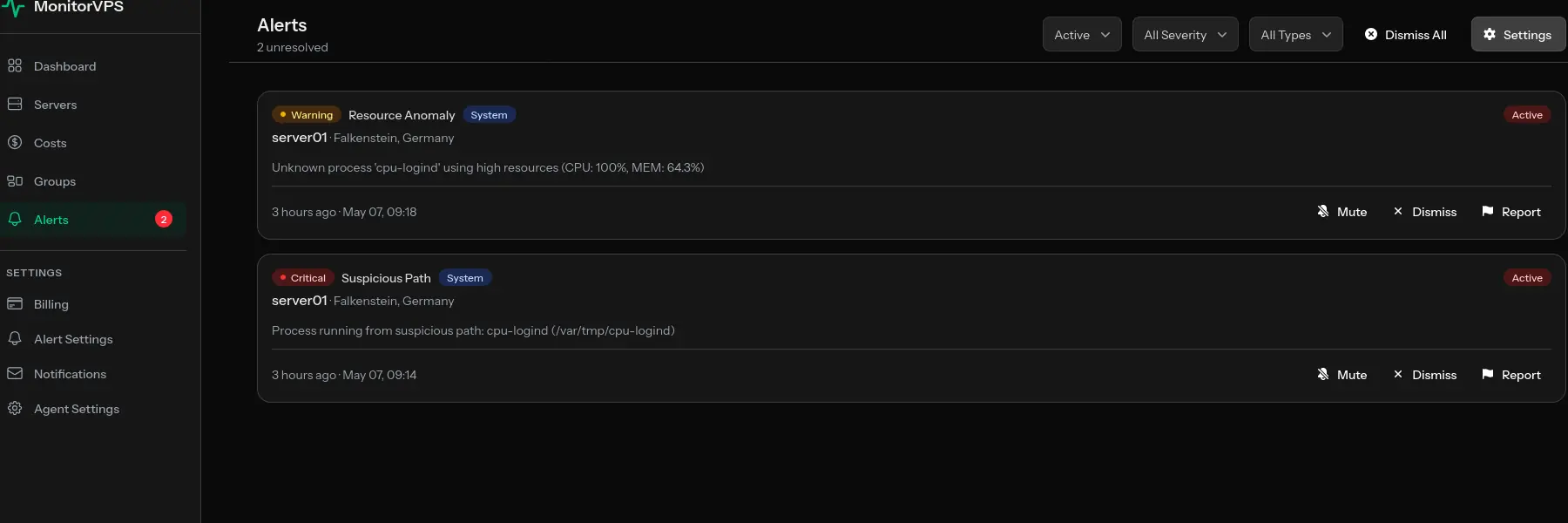
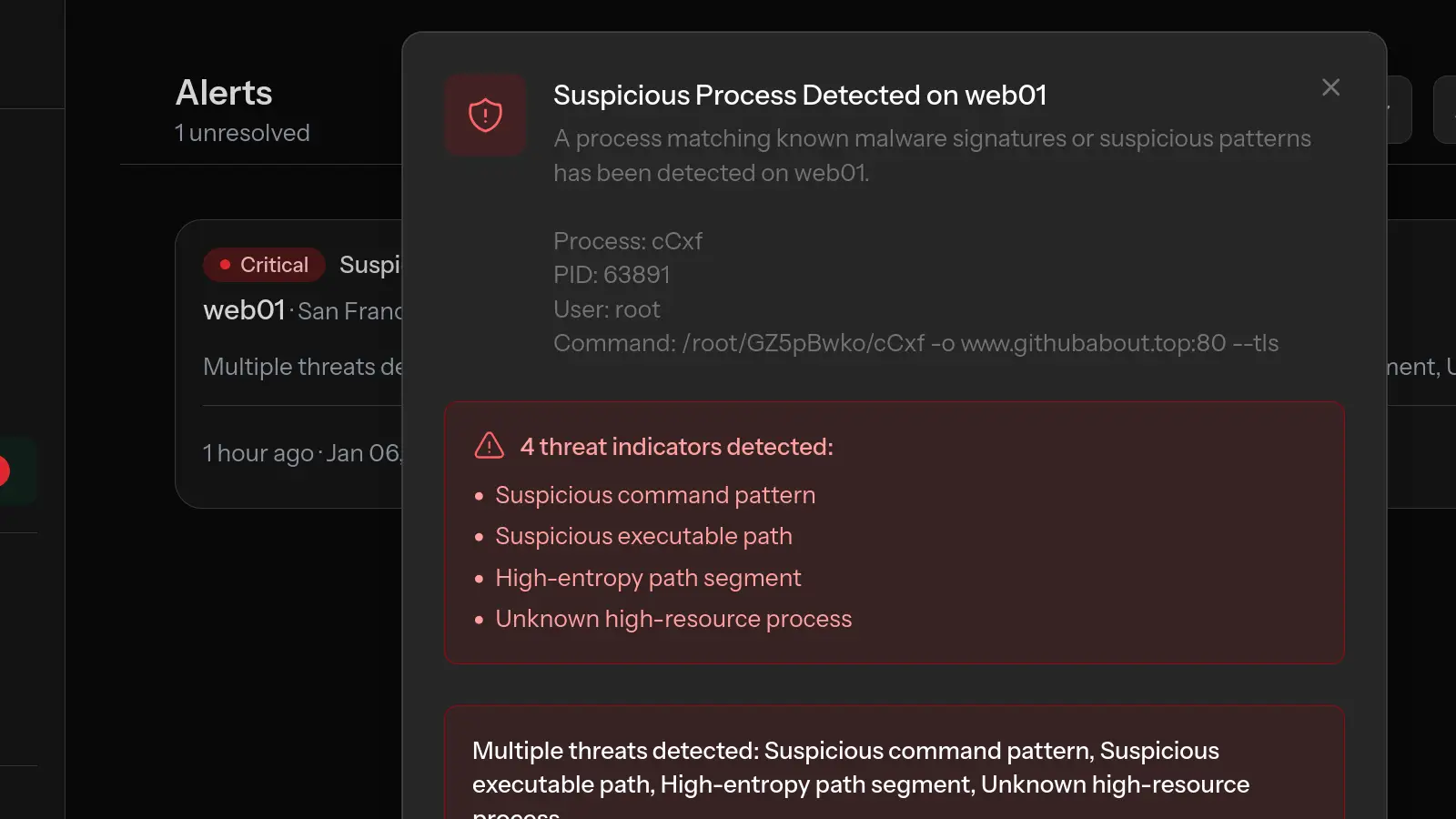
- Unfamiliar process names
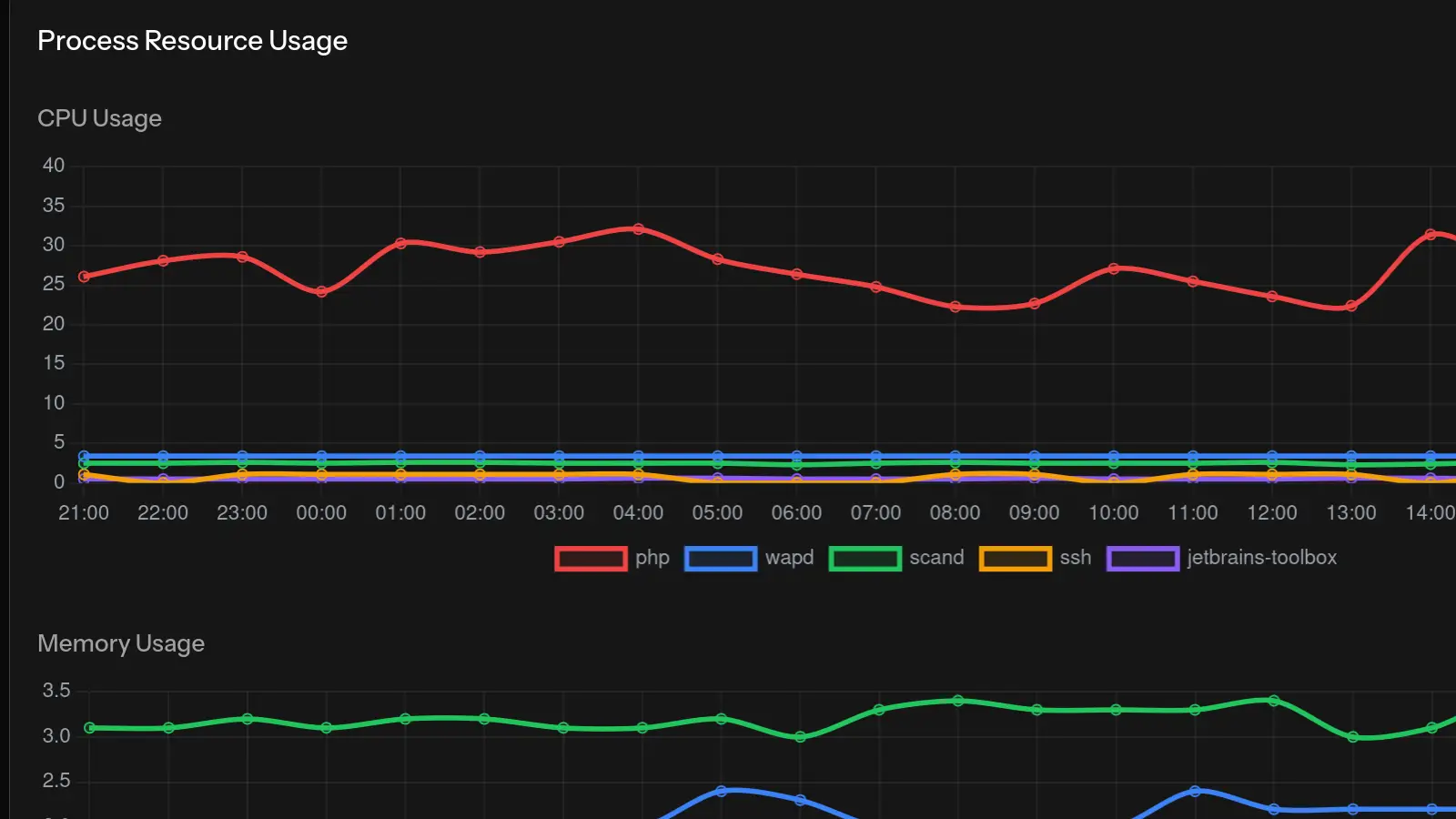
With monitoring tools like MonitorVPS, you can see historical CPU patterns to understand if this is a new issue or ongoing trend.
Step 3: Check Memory Usage
free -h
# Output shows total, used, free, shared, buff/cache, available
Key indicators:
- "available" is what actually matters, not "free"
- Swap usage – High swap usage means you're running low on RAM
- buff/cache – This memory can be reclaimed if needed
To find memory-hungry processes:
ps aux --sort=-%mem | head -20Step 4: Check Disk Space and I/O
df -h  # Disk space
du -sh /* 2>/dev/null | sort -hr | head -10  # Largest directories
Common culprits for full disks:
/var/log– Log files/tmp– Temporary files/var/lib/mysqlor/var/lib/postgresql– Database files- User uploads or cache directories
Step 5: Check Running Processes
ps aux | wc -l  # Total process count
ps aux --sort=-%cpu | head -20  # Top CPU processes
ps aux --sort=-%mem | head -20  # Top memory processes
Look for unexpected processes or too many instances of the same service.
Step 6: Review System Logs
tail -100 /var/log/syslog
tail -100 /var/log/messages
journalctl -xe  # Systemd logs with explanations
Look for error messages, warnings, and patterns that correlate with your issue.
Diagnosing Specific Problems
My Website is Slow
- Check if it's server-side or network:
curl -o /dev/null -s -w "%{time_total}\n" http://localhost - Check web server error logs:
tail -f /var/log/nginx/error.log - Check database performance: slow query logs, connection counts
- Check PHP/application logs for errors
- Monitor resource usage during slow periods
Database Is Slow
- Check for long-running queries:
SHOW PROCESSLIST;in MySQL - Review slow query log
- Check disk space (databases need room for temporary tables)
- Check memory—is the database swapping?
- Look for connection limits being reached
Server Crashed/Rebooted Unexpectedly
- Check
/var/log/kern.logfor kernel messages - Look for OOM killer activity:
grep -i "killed process" /var/log/kern.log - Check
last rebootfor reboot history - Review messages leading up to the crash in
/var/log/syslog
Can't SSH Into Server
- Check if server is reachable: ping, or web interface
- Try console access through your hosting provider
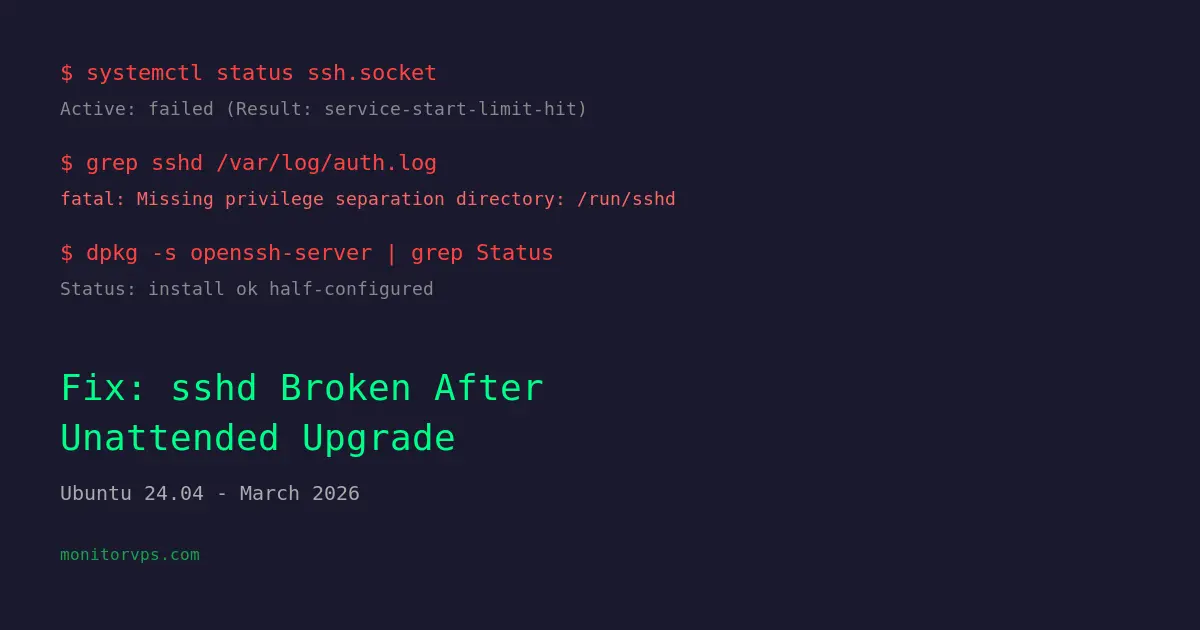
- Check if SSH service is running:
systemctl status sshd - Check if firewall is blocking:
iptables -L -n - Check SSH logs:
/var/log/auth.log
Using Monitoring for Proactive Diagnosis
Reactive troubleshooting is stressful. Proactive monitoring is better:
- Baseline your server – Understand normal resource usage patterns
- Set alert thresholds – Get notified before problems become critical
- Use historical data – Compare current metrics to past performance
- Enable anomaly detection – Let the system identify unusual patterns
- Monitor processes – Know what's running and how much it uses
Tools like MonitorVPS provide this visibility without complex setup. You get continuous monitoring with alerts when things go wrong, making diagnosis much faster because you already have the data.
Prevention: Reducing Future Problems
Many server problems can be prevented:
- Right-size your server – Don't run at 90% capacity normally
- Set up log rotation – Prevent log files from filling disks
- Monitor disk trends – Address growth before it becomes critical
- Keep software updated – Patches fix bugs and security issues
- Plan for traffic spikes – Know your limits and have scaling strategies
- Regular health checks – Don't wait for problems to look at your servers
Conclusion
Server problems are inevitable, but they don't have to be crises. With systematic diagnosis and proactive monitoring, you can identify and resolve issues quickly. The key is having visibility into your server's behavior—both current and historical.
Start with the basics: CPU, memory, disk. Check processes and logs. Use monitoring tools to establish baselines and catch problems early. With practice and good tooling, diagnosing server problems becomes routine rather than stressful.